

How to trim videos online on YouTube?
Can't find instructions on how to trim videos online from YouTube? Then read our blog which shows everything.
Many video bloggers strive to become popular as quickly as possible and have a large number of subscribers and views. Sometimes they are in such a hurry that they do not notice the extra frames in the uploaded video.
Well, it can also happen when the video is turned on too early or turned off too late. Many people immediately delete the video and look for all possible ways to trim it. But don't cut it rashly. You can immediately cut a video online from youtube.
Detailed instructions on how to trim videos online
Many free video trimming services mainly work with short videos. It makes no sense to upload videos longer than a minute into them, because it is inconvenient, and the programs often start to freeze. But then is it possible to trim a video on youtube?
YouTube allows you not only to trim videos that are uploaded to it, but also to change the color texture,playback speed, etc.
So, let's look at how to trim and save a video from youtube step by step:
- If your video has already been uploaded to your channel, go to the YouTube home page.
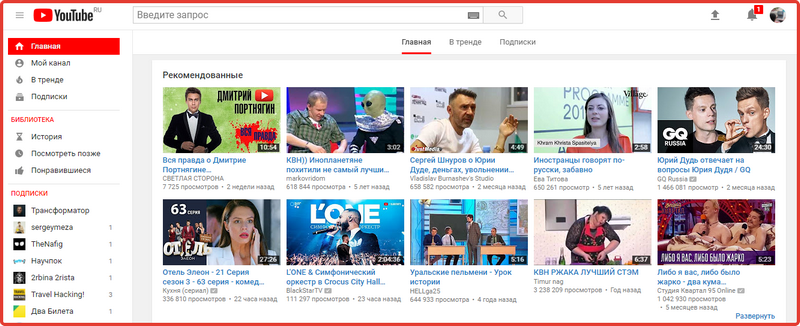
- Click on the icon with your avatar in the upper right corner opposite the site search bar.
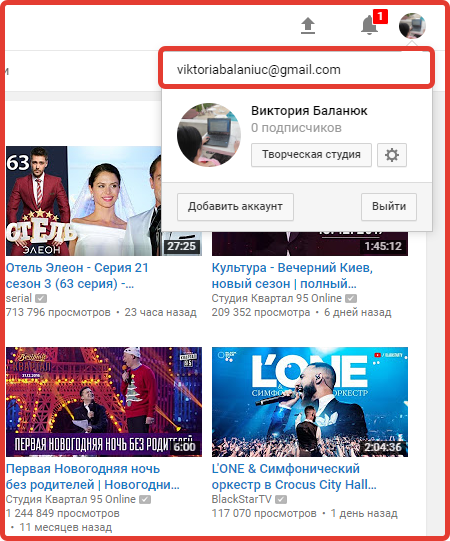
- A small window will open, in which go to “Creative Studio”. You will be immediately transferred to the creative studio page with all uploaded videos.
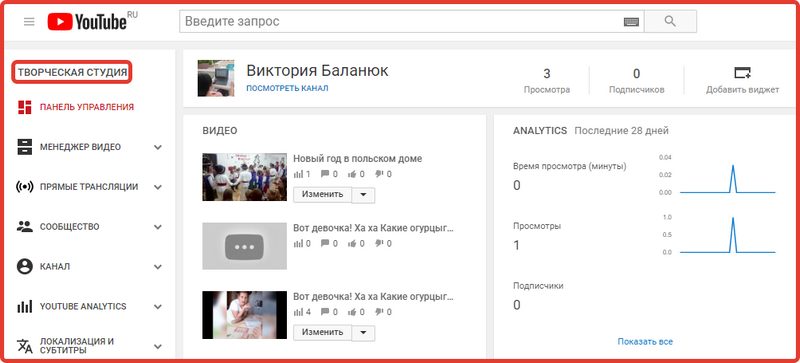
- Note that there is a list of sections on the left. In this list, the words “Control Panel” are marked in red. On it you need to go to the “Video Manager” item, which is located immediately behind the control panel. Go to manager.
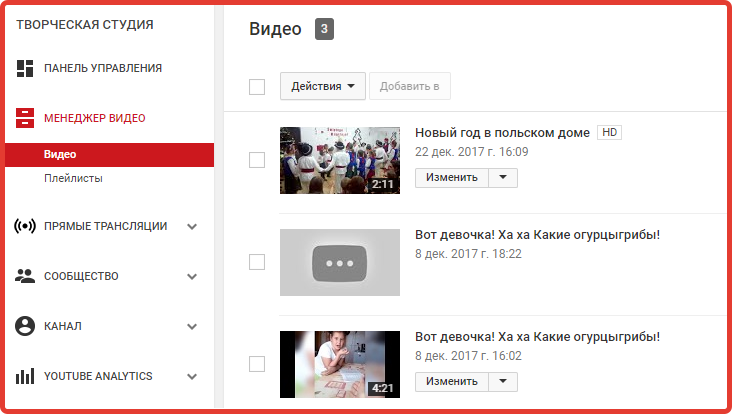
- Here, from the list of your added videos, select the one you need to trim by clicking on"Edit" button next to the video. Once you click on the "Edit" button, the following page will open.
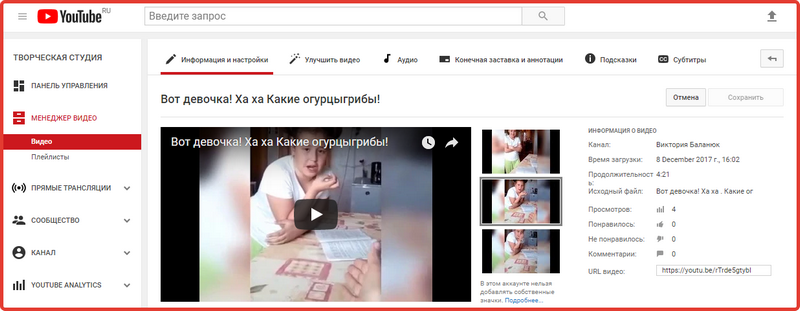
- Here, pay attention to the commands that are located immediately below the site search bar, for example, audio, end screen and annotations, information and settings, etc. From these subsections, you need to go to the second “Improve video”, next to which there is a magic wand icon.
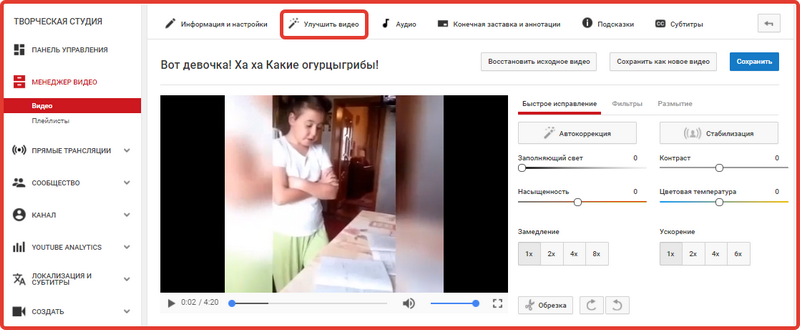
- When you go to a subsection, the selected video will automatically start playing. For convenience, you can stop it. Now pay attention to the already open section with settings to the right of the video.
At the very bottom, under the slowdown and acceleration settings, you will see a “Crop” button next to two arrows for rotating the image. This is what will appear when you click on it. Moreover, the video will automatically start playing.
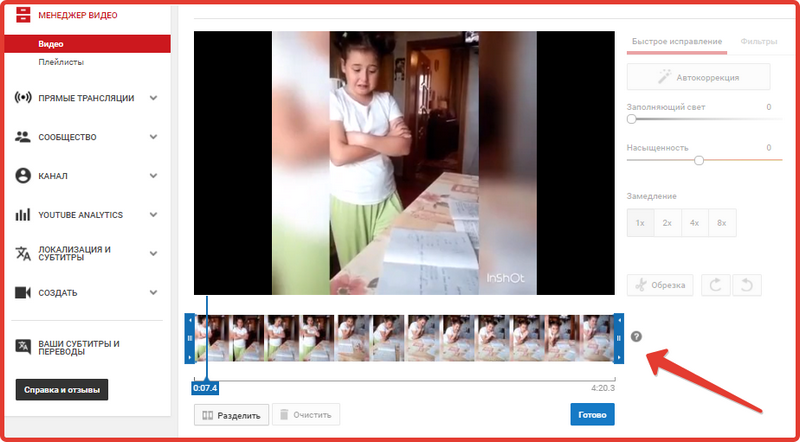
- As you have already noticed, undervideo recording will appear in a line with blue frames around the edges. In order to trim a recording, you need to move the frames to the moment you need. As a result, the part of the video shaded in gray in this line will be cut out. Play the recording again and check that everything is cut out. If you're happy with everything, click "Done" just below.
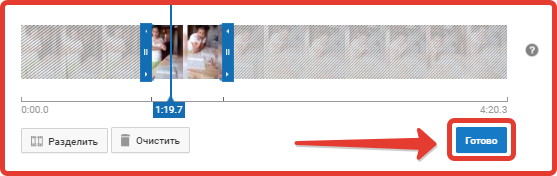
You can also cut part from the middle of the video. To do this, when cutting it out, just below on the left side, click on the gray “Divide” button. Then you can, by moving the frames, cut out part of the video from the middle.
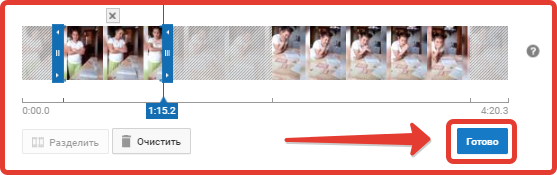
If you change your mind, then next to the split button, you can click “Clear” and try again or even go to another section.
In addition to cropping, you can change the color of the picture, its playback speed, adjust stabilization and much more. In fact, the YouTube video editor is considered one of the best free editors. Well, for promotion of videos andpages in general, take advantage of our services.
In 2017, a lot has changed in the YouTube service. Many features have changed, updated, or even been disabled. The reason for their deactivation was the low level of demand for them. The video editor was also affected by the changes. It wasn't just changed, it was completely removed. Now you can't download and trim videos from YouTube. More details about this are indicated in service help. However, this did not in any way affect the work with already downloaded videos, which can be trimmed directly on the site.