

How to stream on YouTube?
Don’t know how to start using live broadcasting on YouTube, how to stream on YouTube and what it is? Read about this in our article.
 Fans of watching videos are familiar with the popular video hosting site YouTube, but not everyone knows that this platform supports live broadcasts and often wonder what a stream on YouTube is?
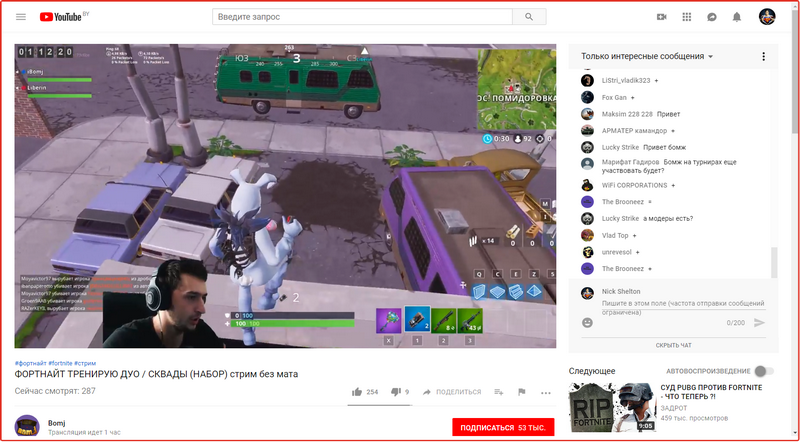
A YouTube stream is a live broadcast on the Internet. On the stream, you can show everything passing on the computer screen to other users, comment, communicate with viewers, in addition, you can connect a webcam.
And unlike Twitch and Hitbox, starting a broadcast on YouTube and attracting an audience is much easier. But for violating the rules, the penalties are much stricter than on Twitch or Hitbox.
If on these platforms a violation can result in a block for several days or even a warning, then YouTube can block the channel forever and it will be extremely difficult to restore it.
Fans of watching videos are familiar with the popular video hosting site YouTube, but not everyone knows that this platform supports live broadcasts and often wonder what a stream on YouTube is?
A YouTube stream is a live broadcast on the Internet. On the stream, you can show everything passing on the computer screen to other users, comment, communicate with viewers, in addition, you can connect a webcam.
And unlike Twitch and Hitbox, starting a broadcast on YouTube and attracting an audience is much easier. But for violating the rules, the penalties are much stricter than on Twitch or Hitbox.
If on these platforms a violation can result in a block for several days or even a warning, then YouTube can block the channel forever and it will be extremely difficult to restore it.
Features of streaming onyoutube
After watching a couple of broadcasts on YouTube, the question arises: how to stream on YouTube? First, you will need to create a Google account by filling out a special form.
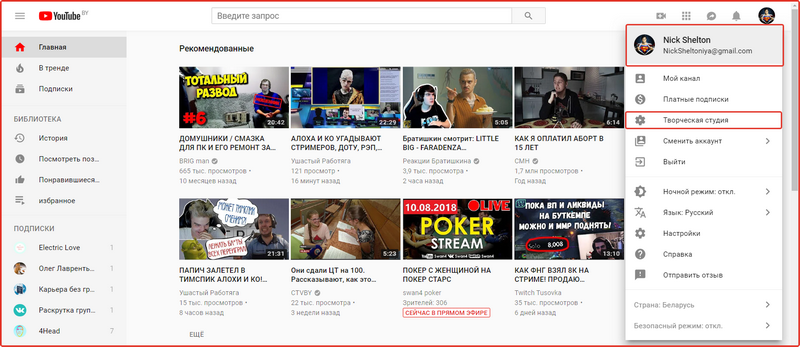
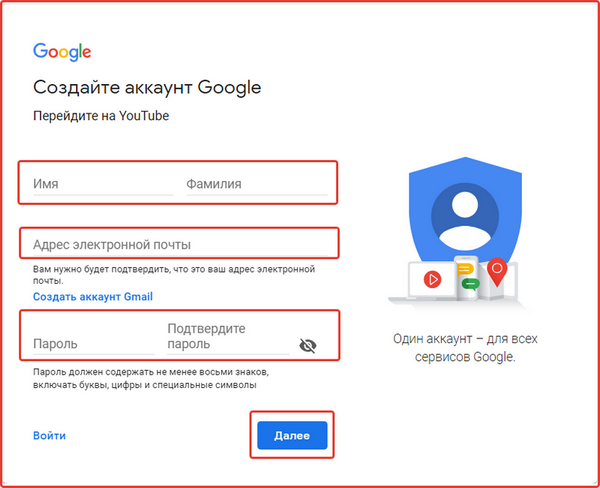 After registration, you will have your own channel on YouTube, on which you can conduct your stream. All manipulations with the stream will take place in the creative studio, to get there you need to click on the channel icon and select the “creative studio” section.
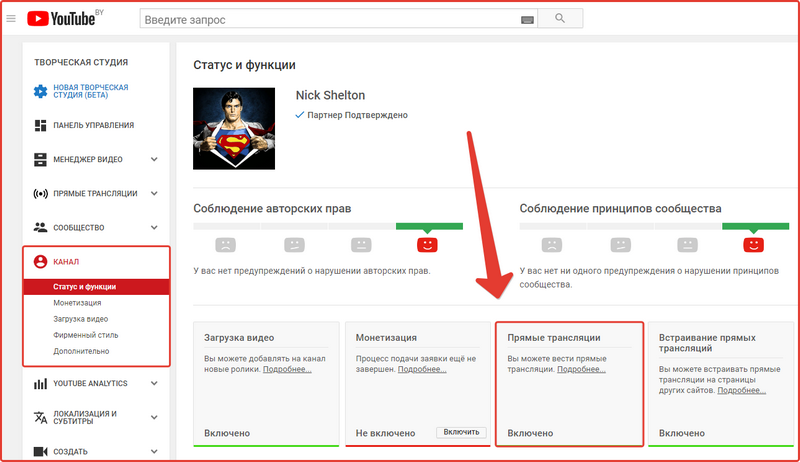
 Then we enable the ability to go live: in the creative studio, select the “channel” section and go to the “Status and functions” subsection, where we activate everything necessary for streaming, namely the “live broadcast” function.
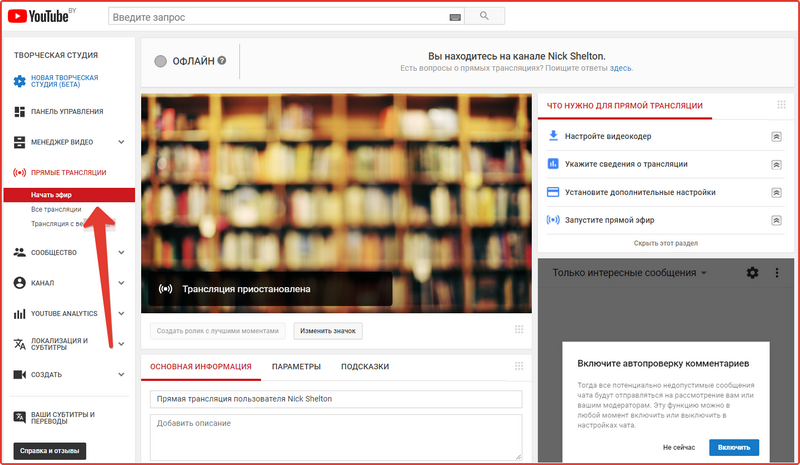
 And the answer to the question - how to start a stream on YouTube can be found in the creative studio by going to the "live broadcasts" section.
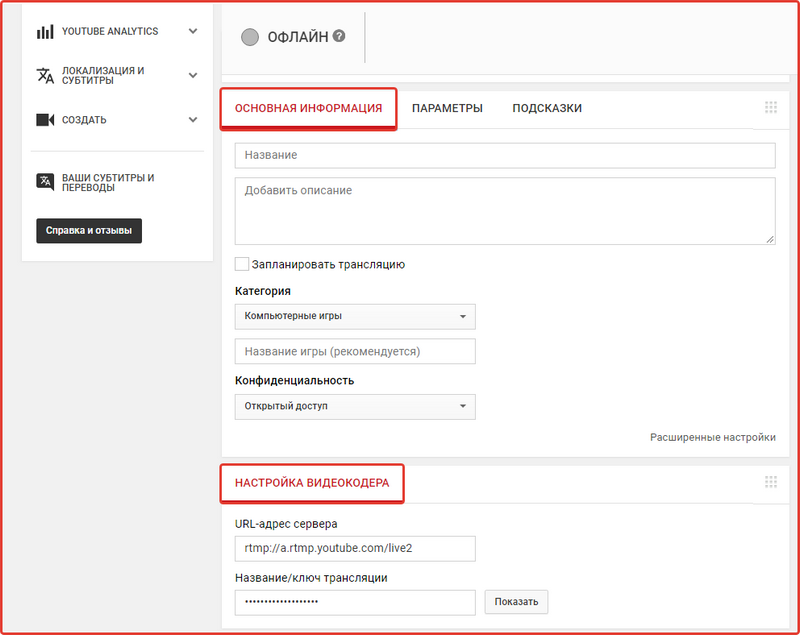
 In order for ourthe broadcast launched successfully and was active for a long time; you will need to set up the stream on youtube.
Instructions for setting up a stream on youtube
First we need to download and connect our video encoder to the channel. The most popular and convenient at the moment is OBS Studio; for AMD video cards, OBS VCE will be a more optimized version, and for NVIDIA regular OBS. Go to settings and configure each section:
- Encoding - select the appropriate settings for our video card.
- Broadcast - in the column mode: live broadcast - in the column broadcasting service: Youtube.
- Video - video card: choose yours. And most importantly, specify the same extension as when creating the stream, otherwise YouTube will not play the broadcast.
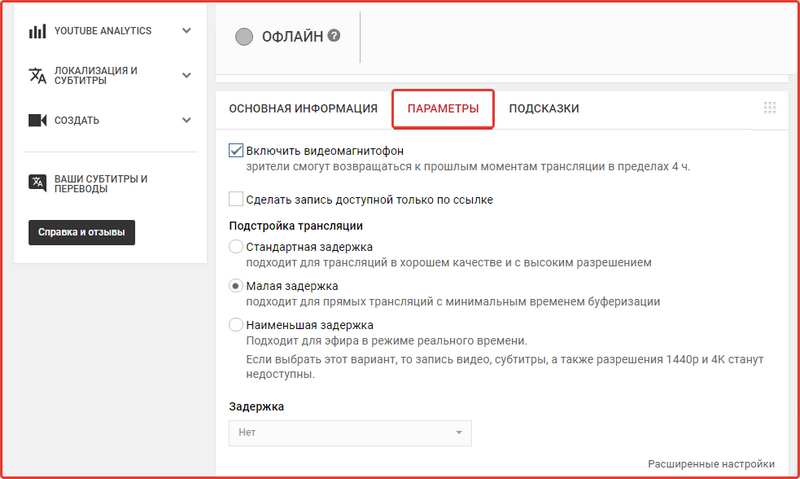
- Enable/disable delay.
- Enable/disable the ability to return to past moments on the stream.
 Coming to the final part, you can set additional settings for the stream, which allows you to make your live broadcast even better.
Additional settings include connecting a webcam, adding the option to donate in the tooltip section, telling about your broadcast on social networks, and much more.
Coming to the final part, you can set additional settings for the stream, which allows you to make your live broadcast even better.
Additional settings include connecting a webcam, adding the option to donate in the tooltip section, telling about your broadcast on social networks, and much more.
How to start a stream on YouTube?
Having completed all the preparations for the stream, one question remains - how to start a stream on YouTube? And to do this, we return to the OBS program that has already been configured and connected to our channel and in the main menu click on the “Start broadcast” button. Then go back to YouTube and look at the state of the broadcast; if configured correctly, everything should be active. Then we launch “test viewing of the live broadcast”, which may require updating the page and checking the quality of the broadcast and sound. All checks were successful and you can go live, click “start streaming” and in the lower window you can see how others see the broadcast.