

How to record video from a PC screen: detailed step-by-step instructions!
Do you want to know how to record video from your PC screen or iPhone screen? Our blog will help you, the most popular services on our service!
Many novice video bloggers on YouTube create their own unique and interesting content for subscribers and many views. And having decided to record their own video from their computer monitor (whether it’s an online show or their own video tutorial), many do not know how to do it.
This problem is familiar to many, so let’s not delay.
How to record a video on YouTube from the screen, let's look at this topic in more detail.
To record video from a PC screen, you need to install a special program, software that was originally created for the purpose of capturing and saving video recordings.
Detailed instructions for recording video from the screen!
So, how to record video from your PC screen? There are quite a few programs for these purposes; the most worthy ones will be listed below.
Let's choose one of them that is most suitable for a step-by-step example, Movavi Screen Capture Studio. You can alsochoose it, or one of any others presented below.
- So, go to the official website where you can download the program.

- On the main page you will notice two buttons “Download for free”. One version of the program is for a computer, the second is developed for the IOS platform. Click on the one with the Windows icon. Immediately at the bottom left you will see the process of downloading the file.

- When the file is downloaded, click on the arrow next to it, and then on the “Open” command.

- After waiting a little, you will see a pop-up window in which you need to confirm making changes to the PC.
- Now select your language. In our case, Russian is selected, and click ok.

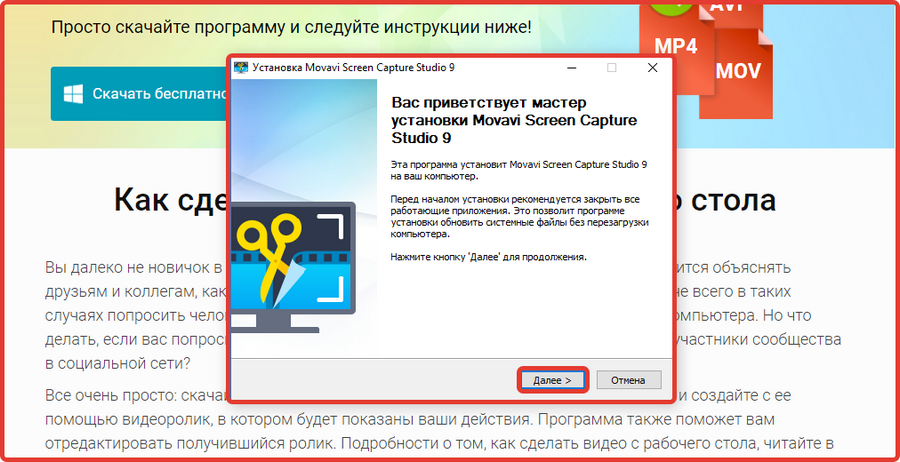
- Here click “Next”.
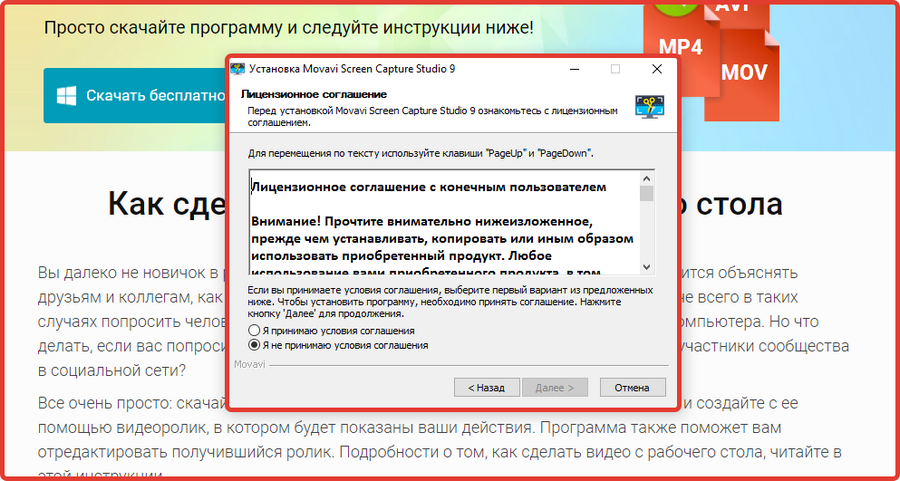
- At this stage youyou must accept the terms of the agreement. Initially, it was noted that you do not accept the conditions. Change the checkbox to “I accept the terms of the agreement” and “Next”.
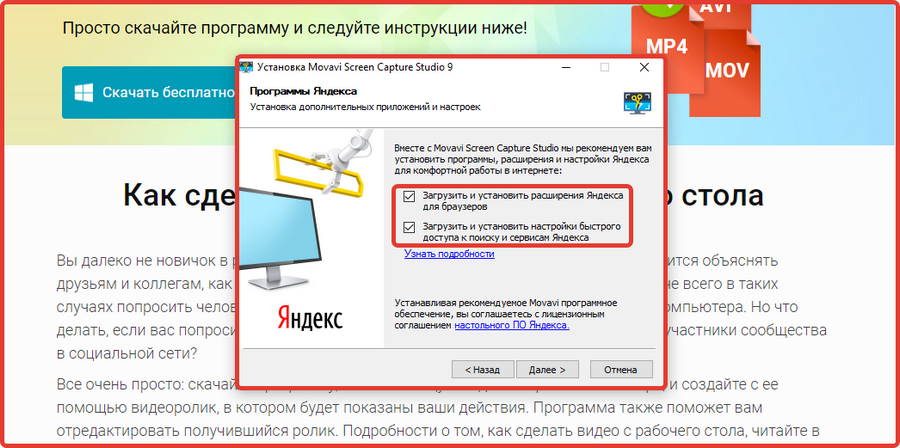
- Be careful here. All free programs offer to install extensions from Yandex, which, as a rule, are not needed. And the checkboxes are always there by default. Uncheck the boxes if you do not want to install them and click “Next”.
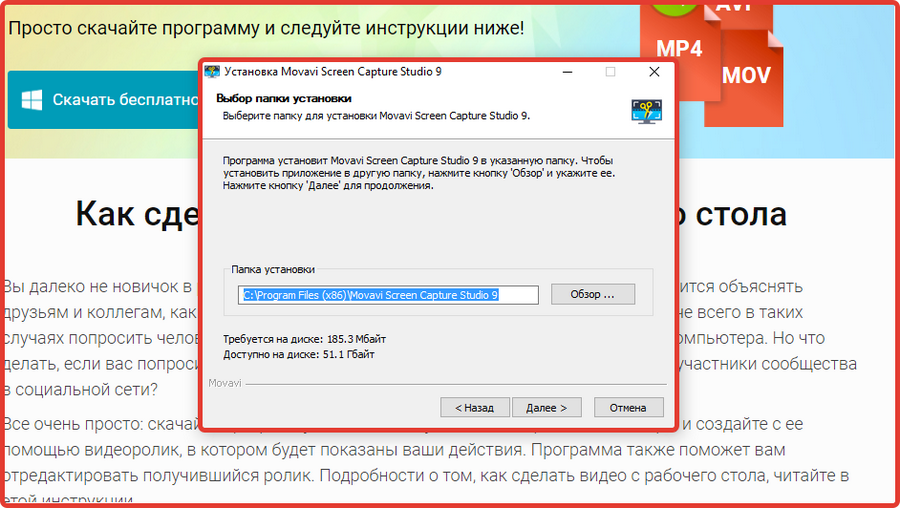
- You will be automatically offered your preferred installation location, leave this or choose your own. And a folder in the start menu. And click “Next”, then “Install”.
- When the program is installed, check the boxes for your preferred launch options and click “Finish.”
We installed a video recording program. Now how to record video from the screen. Find the program if you unchecked automatic launch in the last step, andrun.
- When it starts, to record screen video, first start the video, and then click “Screen Capture”.
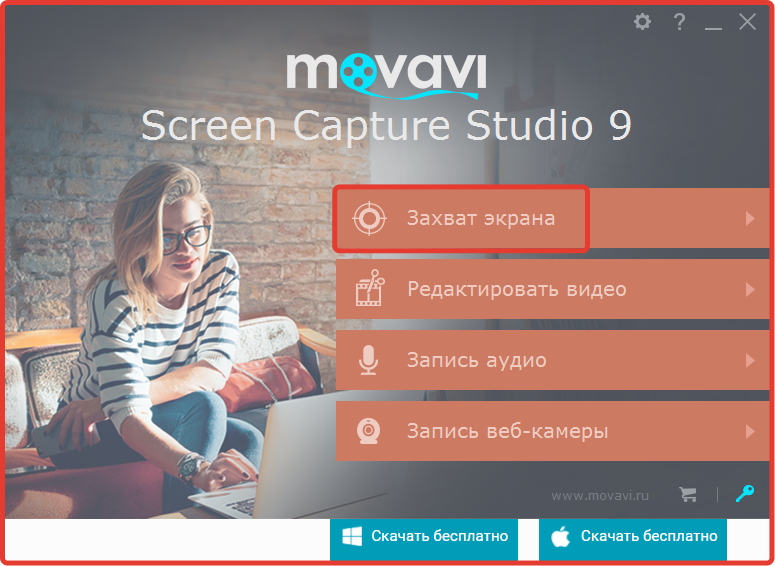
- Program management is quite simple. In the center there is an icon, by clicking on which you can move the capture radius. The sides can be widened or narrowed.
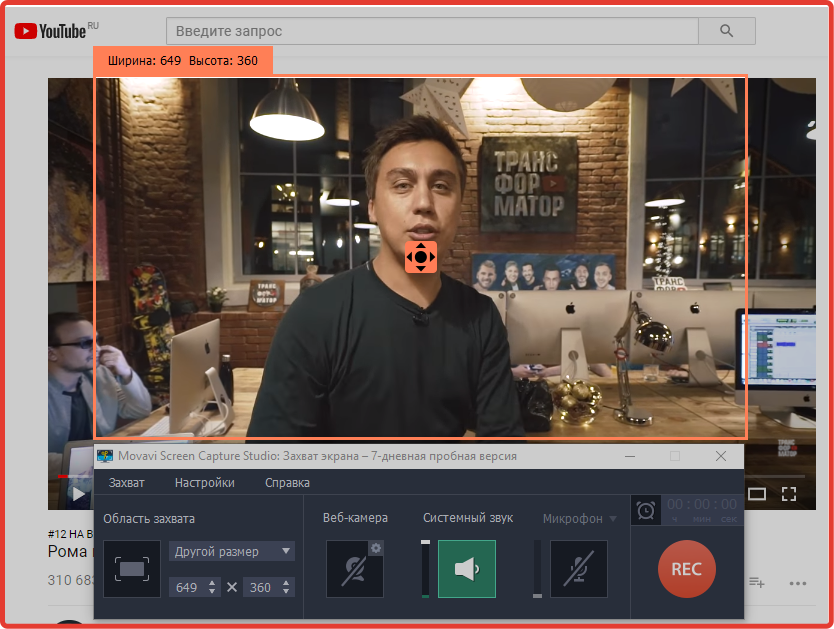
- To start recording, press REC. To close the program, click “Capture” in the lower window that appears with the program, then “Exit”. Other software works on the same principle.
How to record video from iPhone screen?
Starting with iOS 11, Apple's mobile OS has added a video capture function. Thanks to this, we can now record everything that happens on the screen of our gadget, save and share with subscribers if necessary.
Let's look at how to record video from the iPhone screen.
- In settings, go to “Control Center”. Next you need the “Customize controls” section.
- In the list that appears, find the “Screen Recording” command and click on the green plus opposite.
- Now exit the settings and swipe up from the bottom of the screen. This will open the control center.
- Now look, a new “Screen Recording” icon will appear in the bottom row of icons.
- Now click on it and get ready for the recording to start in exactly three seconds.
How to record video from the Android screen?
Before you record a video from the Android screen, you should pay attention to several applications at once. Many functional applications have appeared for the Android platform that allow you to record video from the screens of a smartphone or even a tablet.
Previously forThe Screencast Video Recorder program existed for such purposes. But now there are many more similar and improved programs.
It is worth noting that only one application out of many does not require Superuser rights - this is Recordable.
Which program to record video from the screen?
So, there are many programs to record video from the screen. span class="black_span">And yet, which program to record video from the screen?
- Movavi Screen Capture Studio.
- iSpring Free Cam.
- FastStone Capture.
- UVScreenCamera.
- CamStudio.