

How to embed a video from YouTube on a website?
There are advantages to using videos in website materials; thanks to YouTube, anyone can insert a video onto a page in just a couple of clicks.
YouTube is one of the most popular video hosting sites in the world, which provides the opportunity to add your video to any user for feedback and youtube comments.

For developers, this service is notable for its huge number of videos: any of them can be added to a web page completely free of charge.
However, some videos may be prohibited by the author for embedding on other pages.
Don’t neglect this, because how to embed a video from YouTube on a website can be done in just one minute. You can make your articles much more interesting using videos, but first you need to learn how to embed them.
To do this, find absolutely any video that fits the site pages. Below it there will be a small panel: look for the “Share” link on it. After this, the service will offer several ways to distribute content.
We are interested"HTML code". In the field that appears, you can see the finished code: all that remains is to copy it to the required place in the page code. But the video will have standard settings.
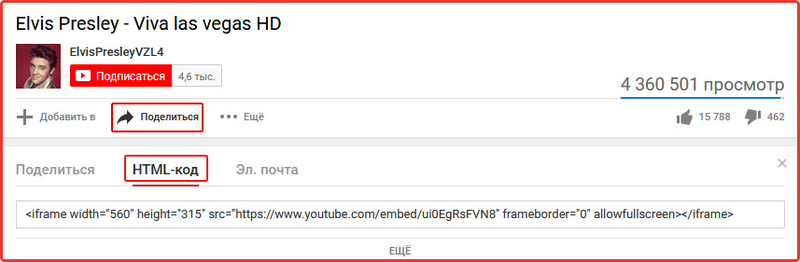
To access advanced options, you need to click on the “More” button, which is located just below the code field. There you can change the size of the video, as well as configure the player itself.
Video size for YouTube
There are only four different video sizes: the standard is the smallest - 560x315. If you don’t change anything, then when inserted the player will have this width and height.
 You can choose three other sizes to match the pages of your site. But the best way would be to set all parameters in height. This can be done directly by simply entering arbitrary values in the resulting code.
There are two special values for this: "width" and "height". By changing these valuesmanually it may turn out that the video will look disproportionate and stretched.
It is better to use the built-in YouTube feature by selecting “Other size”. After selecting this item, two small fields will appear in which you can enter almost any height or width value.
Entering a number in any of these fields will affect the other. For example, if you enter a height of 225, the width will automatically become 127. This is done so that the video looks good at any size.
Other settings
YouTube has such a strong user retention because it constantly offers similar videos to watch. Such internal advertising is even in their player.
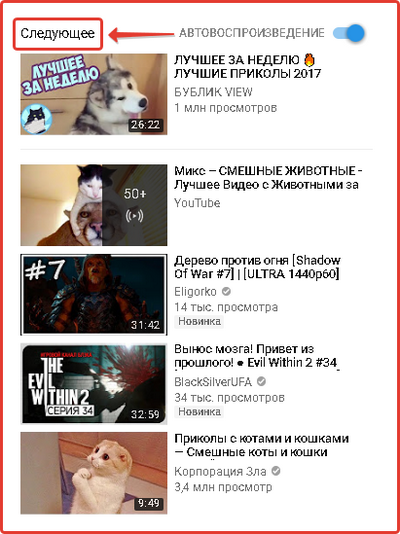
After the video ends, several other videos will appear on the screen. You can also disable the control panel in the player itself. In this case, the viewer will not be able to stretch the player to fill the entire screen or changevolume using standard means.
You can also remove the video title and make the player completely “naked”: it will not have any information or functionality. These are rather strange possibilities, but, however, they can come in handy.
Working with code is much more interesting. With its help, you can automatically turn on the video or force it to start from a certain time.
To automatically play a video, you need to add a special fragment to the code. For example, we received the following HTML embed code:
We are interested in this link
It comes after “src”. We add ?&autoplay=1 to it, resulting in:
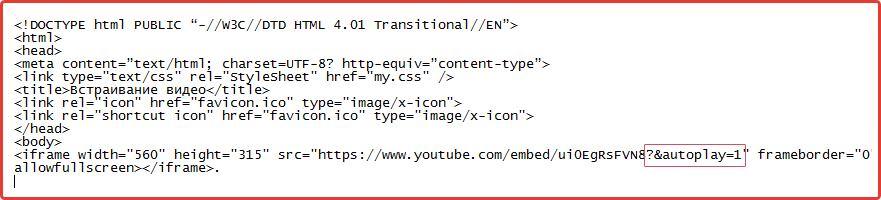
Now the video will play automatically. However, such a video insertion will simply irritate the user and he will leave the page after hearing some unexpected noisein the background.
In addition, it will not be possible to increase views in this way, because they are not taken into account at all during automatic playback.
Another useful feature is playing videos from a certain time. If there is no need to show the entire video, but only need to highlight a certain part, then there is a special code for this.
It looks very simple: #t=
It must be added to the end of the link:
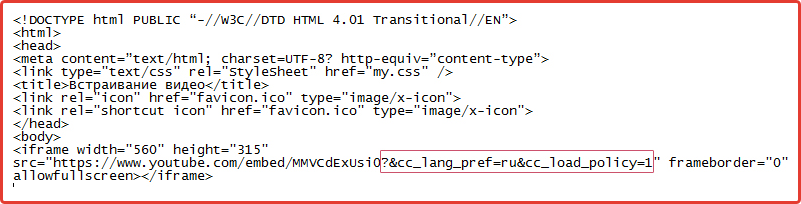
Time should be written as in the example. If a video in a foreign language with subtitles is ideal for an article, you can automatically turn them on.
This is a very useful feature, because often users do not pay attention to the special button in the player. Thinking that there is no translation for the video, they simply close it.
There are two special elements for this that are added to the embed code.
- &cc_lang_pref=ru — sets the Russian language for subtitles.
- &cc_load_policy=1 — turns on captions automatically.
How to prevent video embedding on websites?
YouTube can be used not only as a platform for finding other people's videos, but also as a place to store your own videos. In addition, if the video “takes off” and receives many views, then a certain number of visitors will go to the site.
If you are filming a video for your website, then you should prohibit its embedding on other pages or put a corporate logo on it. It’s best to do this, because absolutely any viewer can embed a video on the site.
To prohibit embedding your videos, you must go to “My Channel”, and then go to “Manager”video". Then select "Edit" next to your video.
In the "Advanced Settings" section, uncheck the special checkbox that allows other users to use your videos.